Beta testing complete: With version 9.0 of Home Assistant’s Matter server, matter.js becomes the technical foundation of the Matter Controller within the system. Until now, users could decide whether to use the old server or a beta version of the new, JavaScript-based release. Installing the newly released server app (link) removes this option. Matter devices in Home Assistant will now be managed exclusively by the new architecture.
The Evolution of matter.js
The server transition in Home Assistant was preceded by substantial changes to matter.js (link). Developed under the leadership of the Open Home Foundation (OHF, link), the SDK has undergone several improvements in recent months. Most notably, the networking stack was completely redesigned to make device discovery, connections, and reconnects more reliable. Additionally, support for large networks was enhanced. The software component that serves as the foundation for the server in Home Assistant also received an update. The OHF Matter Server now carries the official version number 1.1.0.
Expanded Matter specifications were also added. The matter.js library now supports all clusters included in Matter 1.5.1 and can serve as the basis for new device types. However, this does not mean that reference implementations already exist for every cluster. Cameras, for example, are significantly more complex than sensors. Features such as streaming, WebRTC, multiple resolutions, snapshots, and pan-tilt-zoom (PTZ) functionality require substantial development effort. As a result, it will take time before all capabilities are supported out of the box.
Advantages of the New Matter Server
The improved infrastructure makes the server a game-changer for users of the Matter standard. Not only is it designed to deliver better performance – for example, when restoring large installations – but it also includes network diagnostic tools for the first time. A feature that even large, commercial controllers have lacked until now. Connection problems can thus be identified more easily.
The challenge until now has been that common recommendations for improving Thread network stability rely on trial and error. For example, they recommend compensating for poor connections by repositioning devices. If disconnections become less frequent, you’re on the right track. However, hardly anyone knows where in the network these disconnections occur – because common Matter Controllers and apps don’t provide any information about the topography of the Thread mesh.
Smart home enthusiasts are trying to make do with the “Thread Networks Diagnostic” app (link), a tool from the Thread Group. However, it’s only available for Android and doesn’t work reliably with every border router. A diagnostic feature integrated into the ecosystem would therefore be more practical. This is exactly where Home Assistant comes in: Users who open the new server’s interface will find separate “Thread” and “WiFi” tabs that provide graphical overviews of the respective networks and the devices connected to them.
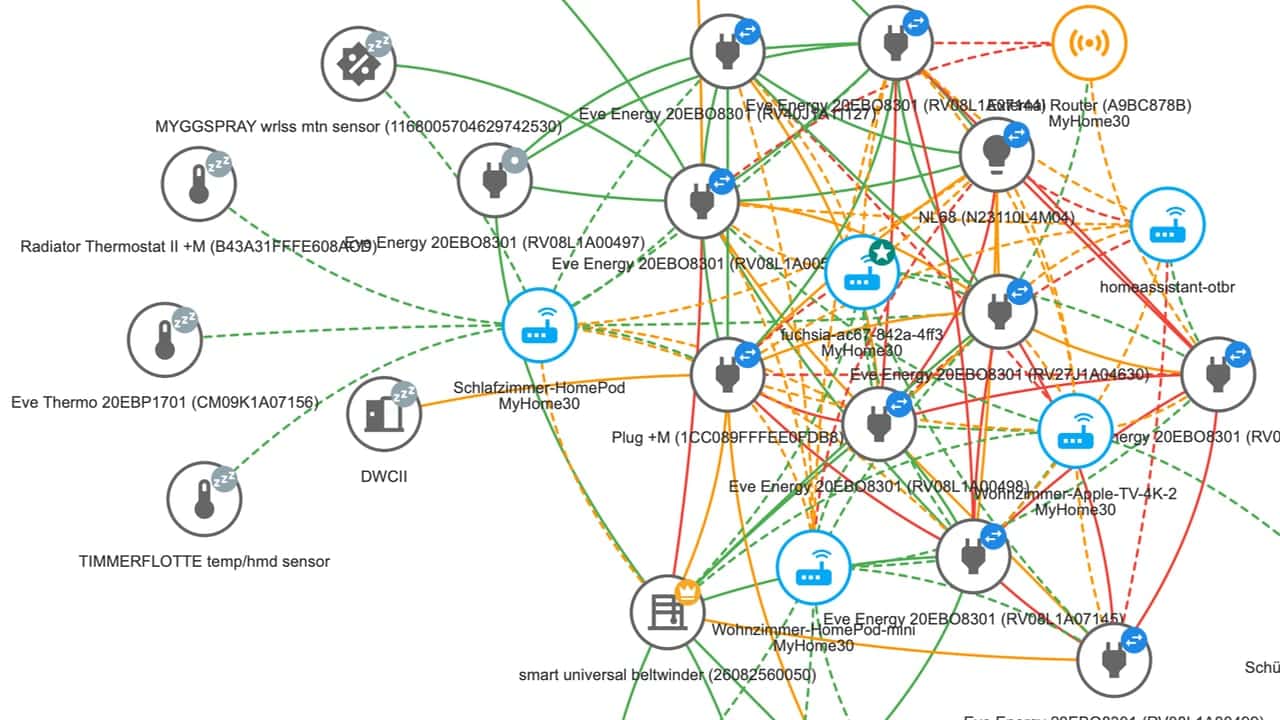
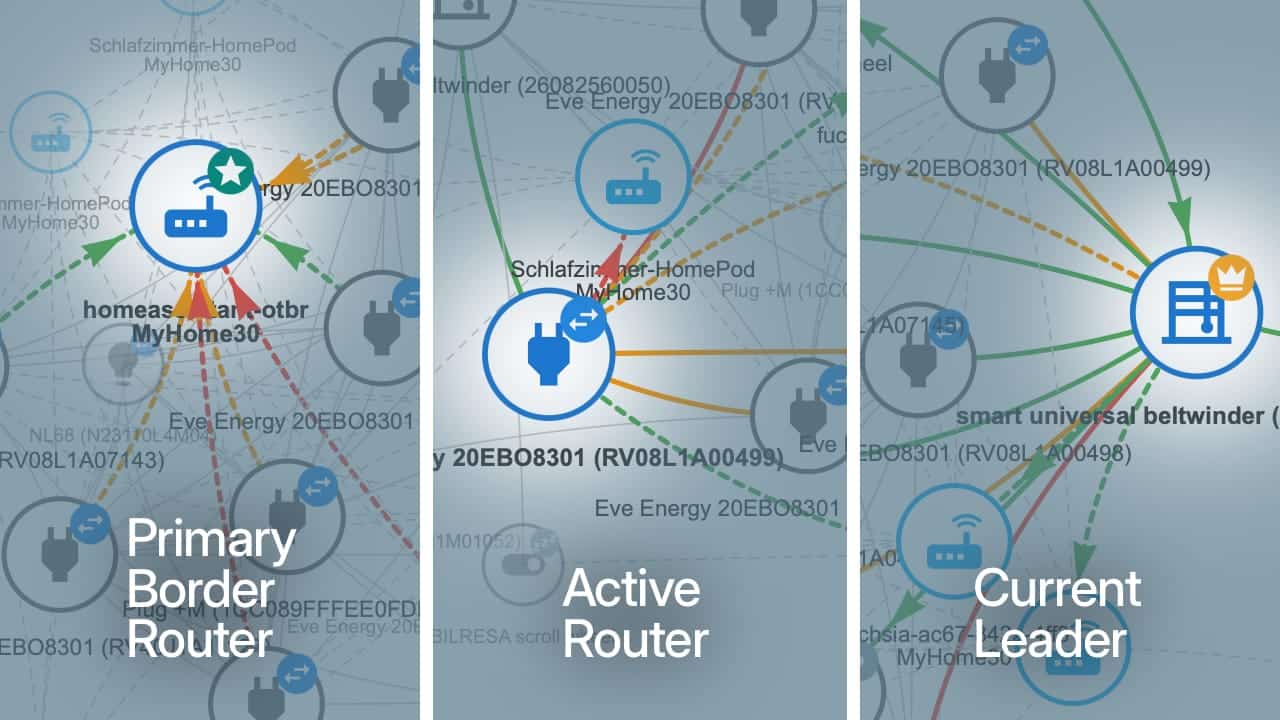
In the Thread view, icons identify Border Routers (light blue), Routers (dark gray), and the various End Device types (light gray). An additional marker on each icon distinguishes active Routers (blue) from devices that the Leader keeps in reserve (gray). The Leader itself is marked with a yellow crown, while Sleepy End Devices are represented by the familiar “Zzz” sleeping symbol. Readers interested in learning more about the different roles within a Thread network can find additional background information here: “As You Route, So You Mesh.”
Not all identifiers are always available, particularly regarding Border Routers. Apple models, for example, provide only limited data. Information may also be missing in networks with multiple ecosystems where devices from different platforms were installed and subsequently shared.
The real advantage, however, lies elsewhere: colored connection lines in the diagram indicate how strong the wireless signal between devices is. To generate this view, the server evaluates Link Quality Indicators (LQIs) from the routing tables maintained by the nodes. The LQI reflects how clean and interference-free the connection to a neighbor appears from the perspective of each node. At the highest quality level (LQI 3), the connection is shown in green. A usable connection (LQI 2) appears yellow-orange, while increasing interference is indicated in red (LQI 1). Dashed lines indicate that only one of the two devices is aware of the other. When both nodes reference each other in their routing tables, the server draws a solid line.
This visualization helps identify weak points within the mesh network. A device that’s connected only by a (fragile) red thread is prone to outages. It should be paired with a more accessible router as its “parent.” If someone in the household accidentally unplugs an intermediate connector, that won’t go unnoticed either – because devices that become offline are displayed in red. All of this makes troubleshooting and diagnosis in the network easier.

For the sake of completeness, it must be said that this setup is not a panacea. Because the server obtains its information from the Matter Fabric to which it is connected, Home Assistant does not receive data from neighboring mesh networks. It is therefore possible that Installations from other platforms may continue to exist alongside it, and their devices will not appear in the diagram.
Even within the displayed mesh, some devices may remain unidentified. One example is a Thread network shared between Apple Home and Home Assistant. If a Thread-based HomeKit device, such as the Eve Water Guard, is installed there, this power-connected node acts as a router and supports the network – but the Matter server cannot identify it because it resides outside the Fabric. In these cases, the diagram displays an “External Router” represented by a generic wireless icon. Additional information about the server’s visualizations is available on the matter.js GitHub page (link).
Initial Startup Requires Time
The Matter Server 9.0.0 is offered as part of Home Assistant’s regular system updates. During the transition from the previous server version, the first startup requires additional time because existing device data must be migrated. Depending on the hardware, storage type, and number of devices, this process may take several minutes. The determining factor is not necessarily the number of devices but rather the number of attributes that need to be converted.
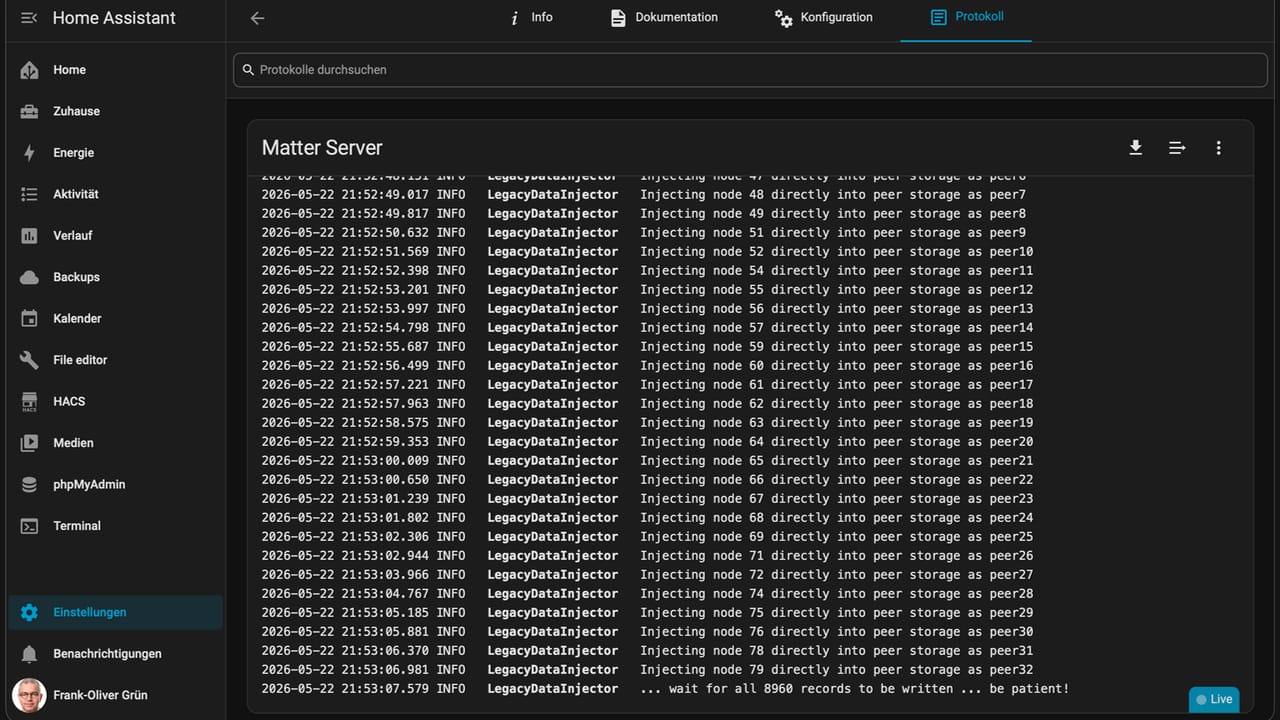
Once the migration is complete, the server must rediscover devices on the network and reestablish connections. This also takes some time before all nodes are shown as “online” again. If automatic detection fails, temporarily disconnecting them from power – or removing and reinserting batteries in the case of sensors – may help. Unlike the legacy Python-based server, the new architecture is designed to handle reconnect scenarios more effectively when devices become temporarily unreachable. During testing at matter-smarthome, the transition went smoothly, and all mesh participants came back online on their own.
Matter Server Storage Requirements
During operation, it becomes apparent that the new software requires more resources than the previous Python server. Its RAM requirements are roughly double. On older hardware, this can lead to bottlenecks if the system was already heavily loaded beforehand. 2 gigabytes of RAM used to be sufficient for running Home Assistant. Nowadays, however, more is needed – especially if many integrations and the energy dashboard are in use.
The number of Matter devices and their entities also plays a role here – because statuses are constantly written to the database by the system’s recorder (link) so that a history can be displayed later. With measuring smart plugs that sometimes send data every few seconds, lots of information accumulates. A RaspberryPi running Home Assistant is therefore better off with 4 gigabytes of RAM (or more). This is also the configuration in which Nabu Casa and the Open Home Foundation offer their entry-level model, Home Assistant Green (link).
Share this information: